How to Find Expiring Federal Contracts: A Step-by-Step Guide
With three free government websites and about 20 minutes, you can build a list of contracts in your field that end in the next one to two years: the recompetes you could prepare for now.
On this page
Every federal contract has an end date, and most of them are public. With three free government websites and about 20 minutes, you can build a list of contracts in your field that end in the next one to two years: the recompetes you could prepare for now.
This guide walks you through it step by step. You'll finish with a watch list of contracts, their incumbents and their end dates, plus alerts that tell you when each agency starts asking questions.
What you need: your NAICS code(s), a free SAM.gov account (for step 2 and step 5) and a spreadsheet.
Step 1: Pull contracts in your field from USAspending.gov
USAspending.gov is the government's public spending site. It needs no login, and every contract record shows two end dates:
- Current end date: when the work ends under the options already exercised.
- Potential end date: when it would end if every remaining option were exercised. For recompete planning, this is usually the one to watch.
One catch: the search page filters by the date money was spent (the "action date"), not by end date. USAspending's own glossary says searches use the action date rather than period-of-performance dates (USAspending glossary). So you pull a broad list first, then sort it by end date in a spreadsheet.
-
Go to usaspending.gov/search (Advanced Search).
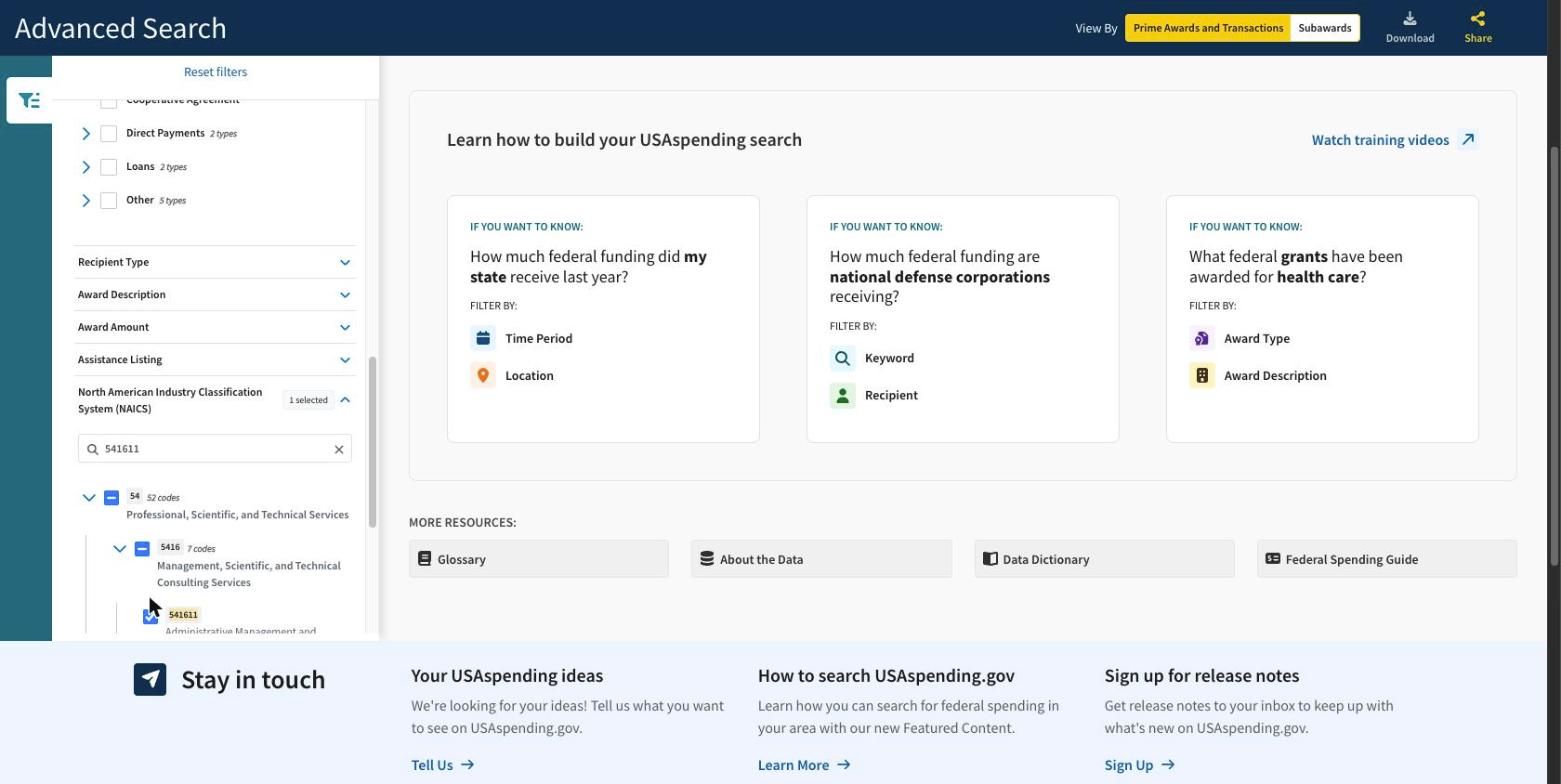
USAspending Advanced Search with the NAICS filter open and code 541611 selected -
Time Period: under Fiscal years, select the last four or five (for example FY 2023 to FY 2027). A five-year contract signed in 2022 still has spending in recent years, so this catches most live contracts.
-
Award Type: tick Contracts (and Contract IDVs if you also want vehicles).
-
Industry: enter your NAICS code under North American Industry Classification System (NAICS). Add the agency under Agency if you only sell to one or two.
-
Click Submit, then Download (top right). Tick Awards in step 1 and click Begin Download in step 2. Each download must be under 500,000 records; narrow your filters if it's bigger.
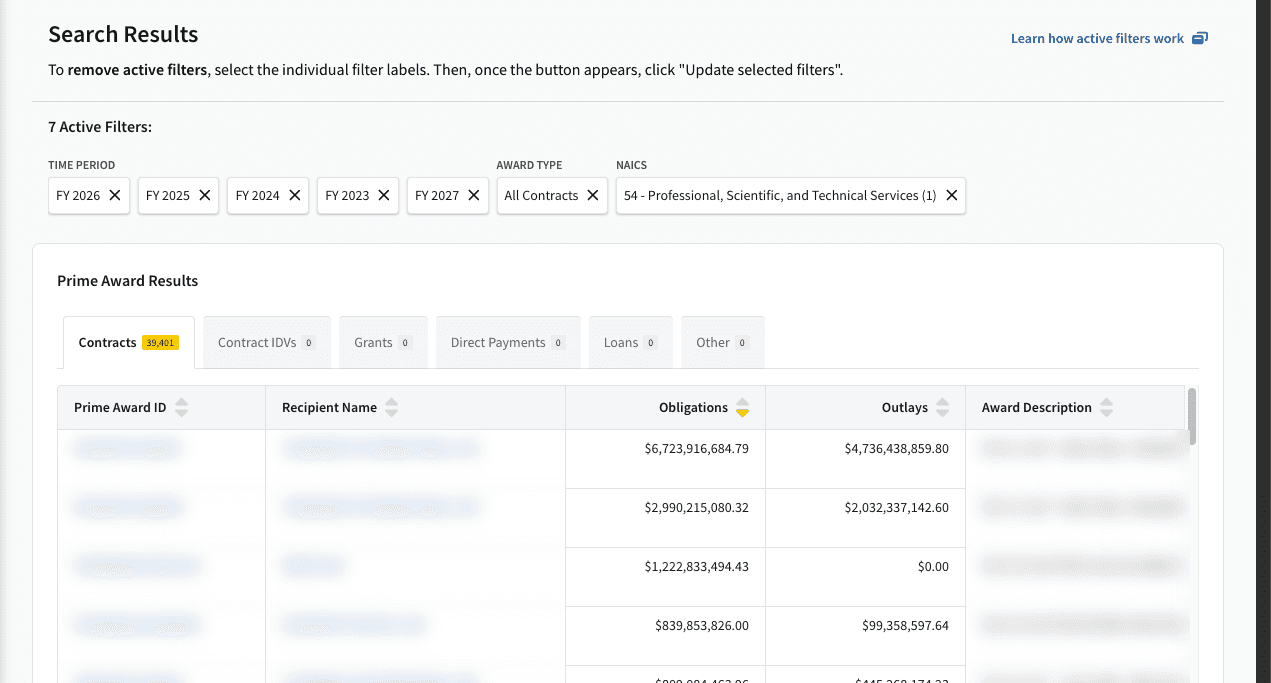
USAspending search results with fiscal year, contract and NAICS filters active; award IDs, recipient names and descriptions are blurred 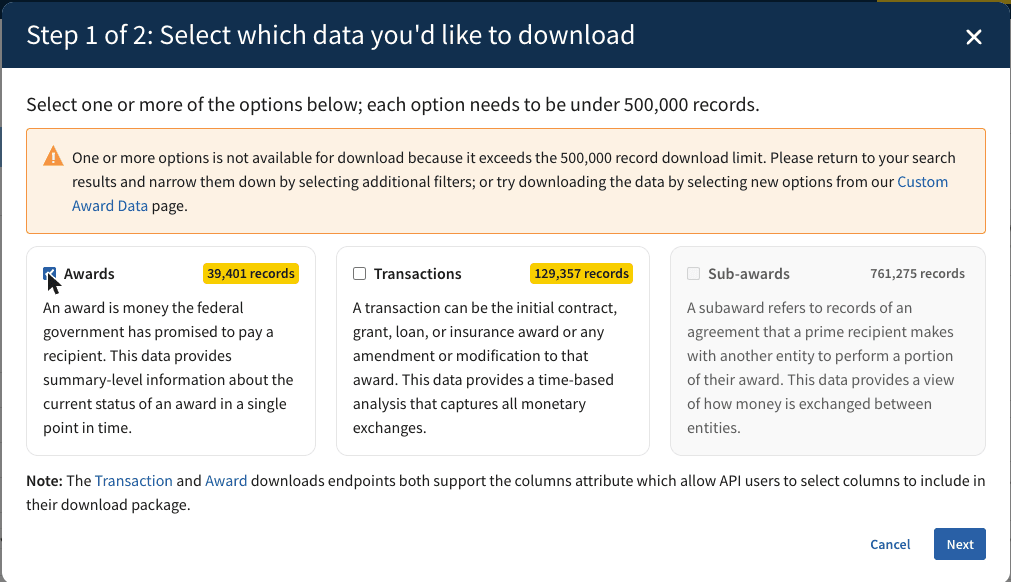
USAspending download dialog, step 1 of 2, with Awards selected and the 500,000-record limit shown 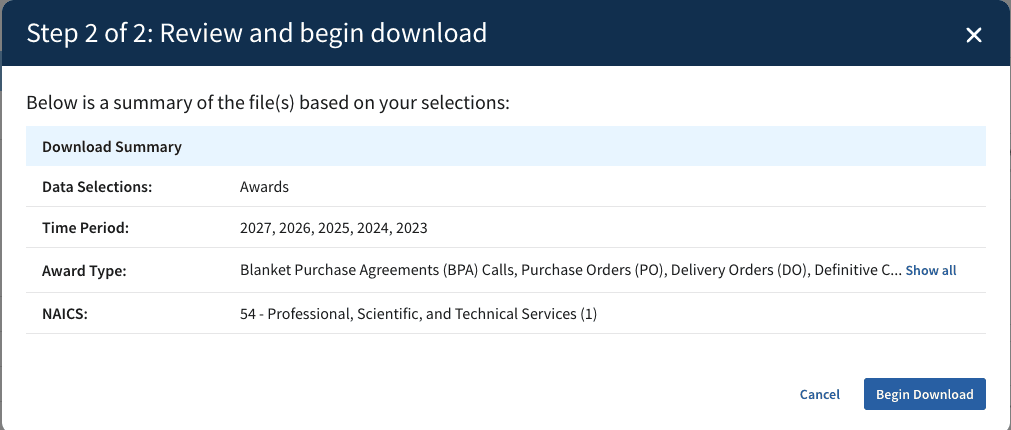
USAspending download dialog, step 2 of 2, summarising the selections before Begin Download -
Open the file. Keep these columns: award ID (PIID), recipient name, awarding agency and office, total obligation, period of performance current end date, period of performance potential end date, number of offers received, extent competed and type of set-aside.
-
Filter the potential end date to 12 to 24 months from today. That's your starting list.
Tip: open any award's summary page on USAspending to see its transaction history. Repeated short extensions near the end date can mean the agency is late on the recompete.
Step 2: Check each contract in SAM.gov contract awards
The old FPDS.gov search was retired on 24 February 2026, and contract award data now lives in SAM.gov (GSA, sam.gov/fpds). You need a free SAM.gov account to see search results; GSA says "no specific role is needed."
-
Sign in at SAM.gov and open the search at sam.gov/search. Choose Contracting, then Contract Awards.
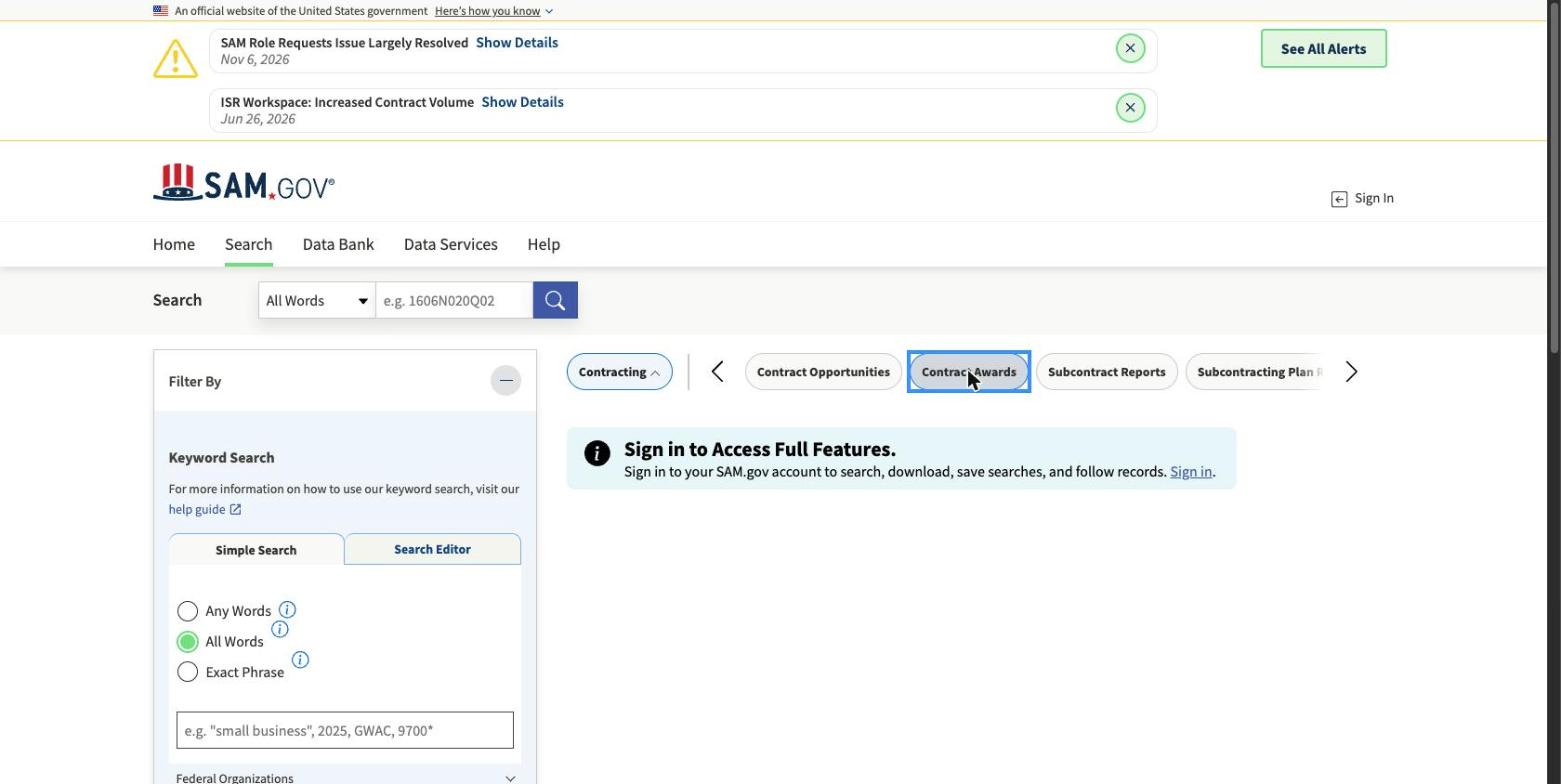
SAM.gov search with Contracting and Contract Awards selected, in the signed-out view that asks you to sign in -
Search by the contract number (PIID) from your step 1 list, or by agency and keyword.
-
Open the award and its modifications. Look for:
-
the Estimated Completion Date, under Performance,
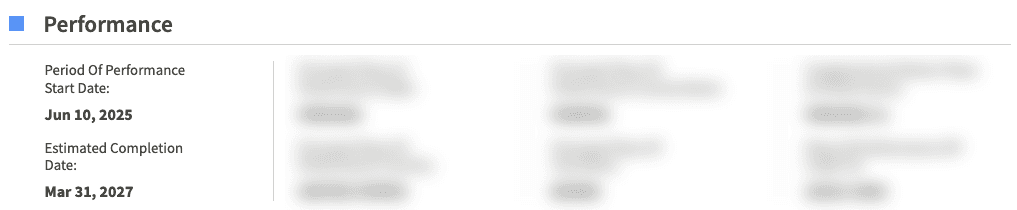
SAM.gov contract award record, Performance section with the period of performance start date and estimated completion date; other fields blurred -
the Modification Summary, where each change lists its Reason for Modification (option exercises and extensions show up here),
-
Number Of Offers Received, under Competition Information,
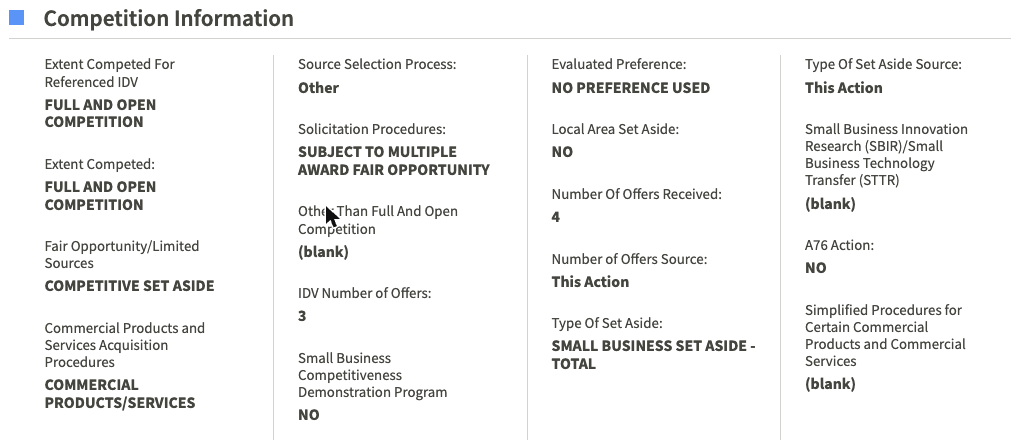
SAM.gov contract award record, Competition Information section with extent competed, number of offers received and type of set-aside -
Type Of Set Aside, in the same section.
-
-
Update your list with anything you find.
Why check twice? USAspending is easy to search in bulk; SAM.gov is the system of record for contract actions. Checking the record itself confirms the end date before you invest time.
Step 3: Look for your contracts in the agency forecasts
Agencies publish forecasts of what they plan to buy. GSA's governmentwide Forecast of Contracting Opportunities tool is public, with no login (GSA). Some agencies, such as the Department of Homeland Security, also keep their own forecast.
-
Open the forecast tool and filter by Agency and NAICS Code. The Award Status filter also helps: it includes stages such as Acquisition Planning, Market Research and Exercise of Option.
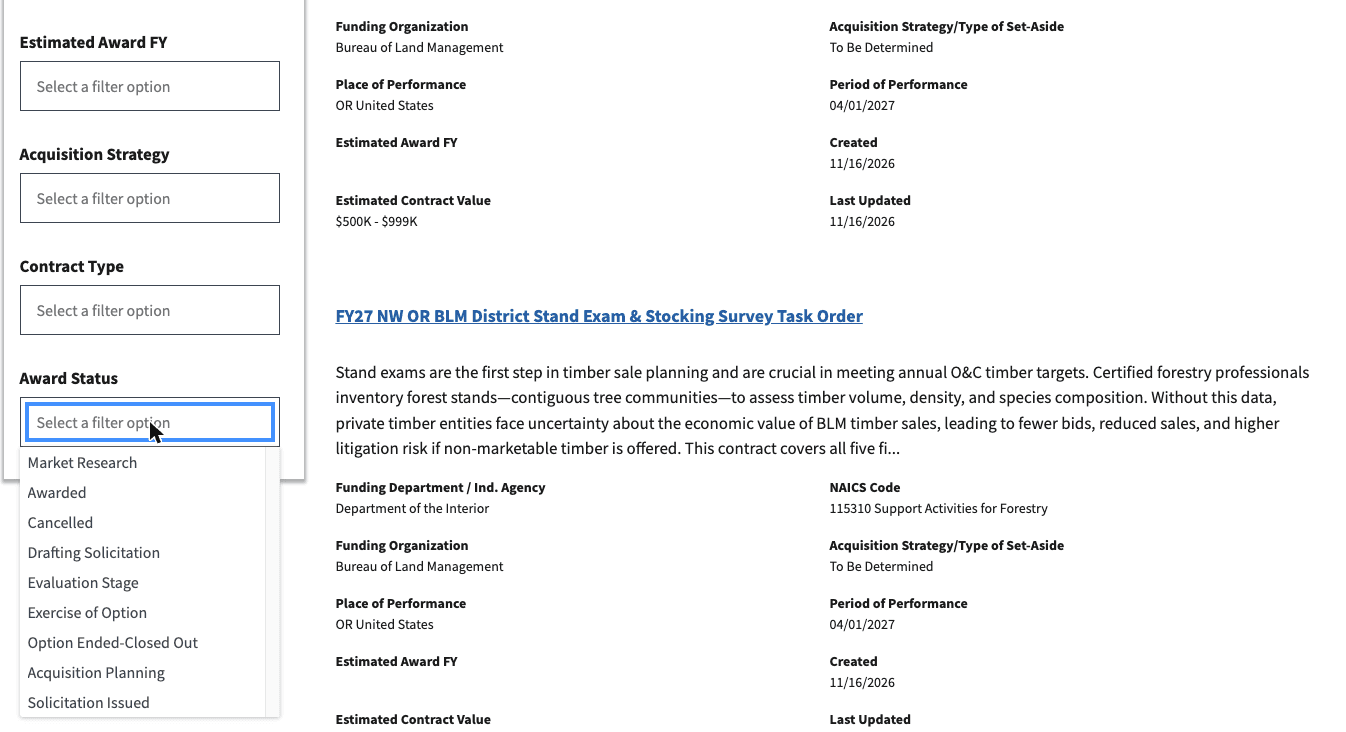
Forecast tool filters with the Award Status list open, showing stages such as Market Research, Exercise of Option and Acquisition Planning -
Look for entries that match a contract on your list: same office, similar description, a planned award date near the end date.
-
Open the entry. Its detail page has fields for Requirement Type, Existing Contract/Order Number, Contractor Name and Current and Ultimate Completion Date. When an agency fills them in, they tell you it's a follow-on and who holds the work now. Many entries leave them blank.
-
Note the Estimated Solicitation Date and the small business specialist if listed. A 2024 White House procurement memo asked agencies to include fields like these (OFPP, Nov 2024).
A match between a forecast entry and an expiring contract is your strongest early signal that a recompete is coming.
Also try: the forecast page links to an Expiring Contracts Dashboard, which GSA says "uses public FPDS data" to support "early identification of potential recompete or follow-on opportunities" (Acquisition Gateway). It was down for maintenance when we checked on 17 Nov 2026.
Step 4: Build your recompete watch list
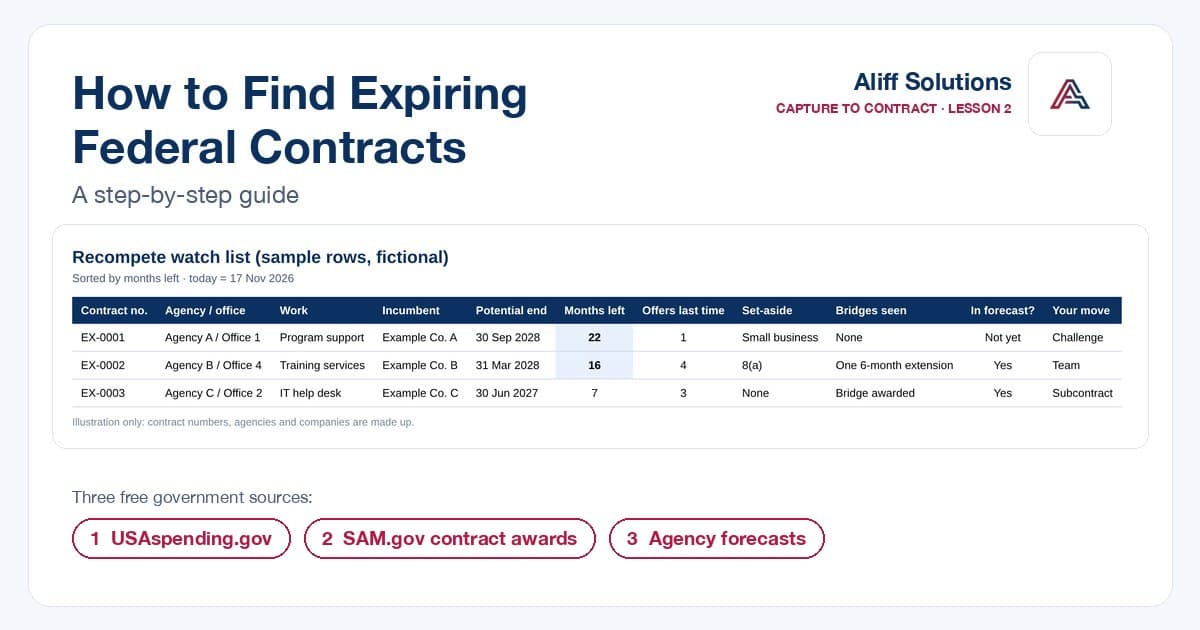
Put what you found into one sheet, one row per contract. These columns are enough to start:
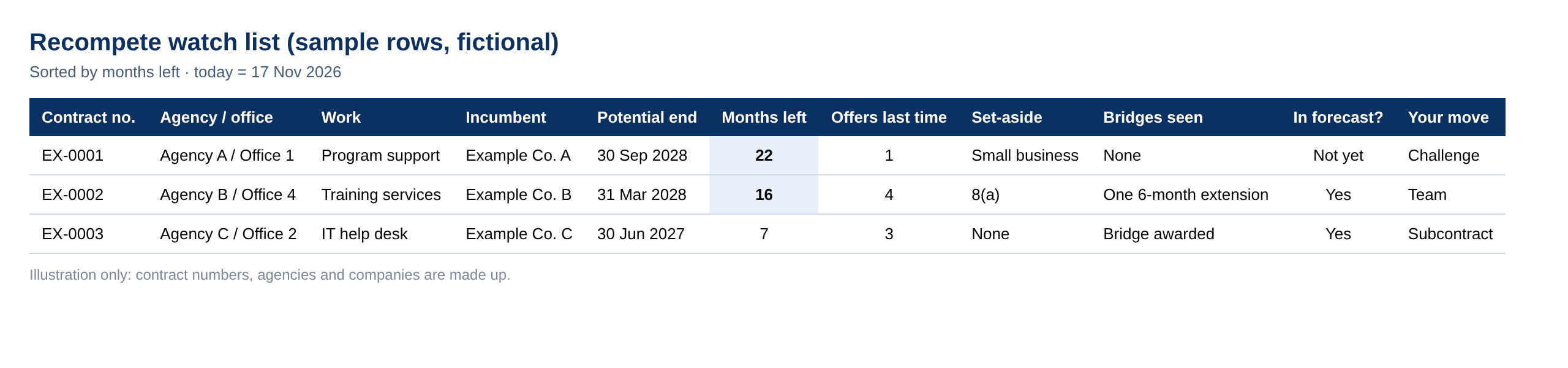
| Column | Where it comes from |
|---|---|
| Contract number (PIID) | USAspending or SAM.gov |
| Agency and office | USAspending |
| What the work is | Award description |
| Incumbent | Recipient name |
| Potential end date | USAspending |
| Months left | Potential end date minus today |
| Offers received last time | SAM.gov or USAspending |
| Set-aside type | SAM.gov or USAspending |
| Extensions or bridges seen | SAM.gov modifications |
| In the agency forecast? | Forecast tool |
| Your move | Challenge, team, subcontract or pass |
| Next action and date | You |
Sort by months left. Anything between 18 and 24 months is where to spend your time now; under 12 months, you're likely late unless you're teaming. (Our advice.)
Step 5: Set alerts so the agency's first move reaches you
The first public sign of a recompete is usually a sources-sought notice or a request for information on SAM.gov, months before the RFP. Make sure you see it.
-
Signed in to SAM.gov, search Contract Opportunities for your NAICS code and the agencies on your watch list. Under Notice Type, pick Sources Sought, Special Notice and Presolicitation. Add Justification to catch notices of sole-source awards such as bridges.
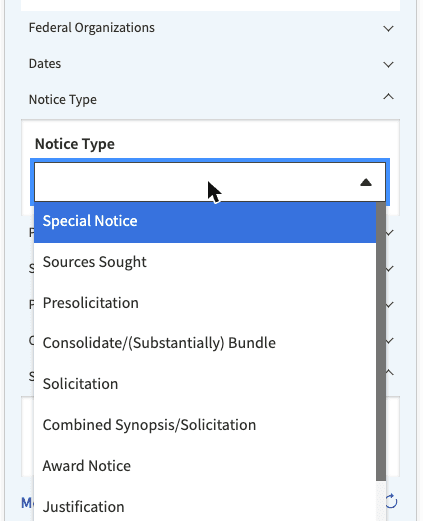
SAM.gov Contract Opportunities Notice Type list with options including Special Notice, Sources Sought, Presolicitation and Justification -
Save the search: use Actions, then Save, at the top right of the results. SAM.gov says signing in lets you "search, download, save searches, and follow records." Then turn on email notifications: open Saved Searches, select the Actions button next to your search and choose Notify (SAM.gov help).
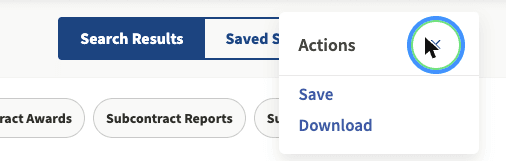
SAM.gov search results Actions menu with Save and Download -
For notices tied to a contract you track, follow the notice so you hear about amendments.
-
Each time an alert fires, check it against your watch list and update the row's next action.
Answer every relevant sources-sought notice. It's often how a contracting officer finds out whether enough small businesses are interested to set the work aside: the FAR asks for a reasonable expectation of offers from at least two responsible small businesses (FAR 19.502-2).
Mistakes to avoid
- Filtering by the wrong date. USAspending's date filter is the action date. Sort by end date after you download.
- Watching the current end date only. It moves each time an option is exercised. Track the potential end date too.
- Assuming the work comes back the same. If the scope, value or customer changes a lot, it may be bought as a new requirement, possibly under a different set-aside (13 CFR 124.3).
- Starting at the RFP. By then, the requirement is written. Your list is only useful if you act at 18 to 24 months.
- Skipping IT contracts' longer terms. The five-year cap on services doesn't apply to IT contracts, so some run longer (FAR 17.204(e)).
How Aliff helps
Aliff Solutions tracks contract end dates, options and bridge extensions for the agencies and industries our clients work in, and starts recompete capture up to 24 months out. A person on our team makes every recommendation. Book a free consultation to go through your watch list with us.
New to recompetes? Start with Lesson 2: Recompetes: The Most Predictable Contracts in GovCon.
General information, not legal advice. Website labels and fields change; facts as of 17 November 2026.
Sources (0)
- USAspending.gov Advanced Search and glossary (searches use action date, not period-of-performance dates)
- GSA: FPDS transition to SAM.gov (ezSearch retired 24 Feb 2026; account needed, no role)
- GSA Forecast of Contracting Opportunities
- SAM.gov help: notifications on saved searches
- OFPP memo: Strengthening Federal Agency Procurement Forecasts (Nov 2024)
- FAR 17.204 · FAR 19.502-2 · 13 CFR 124.3
Frequently Asked Questions
- Can I search USAspending by contract end date?
- No. USAspending's search page filters by the date money was spent (the "action date"), not by end date. Pull a broad list by fiscal year and NAICS code, download it, then sort it by end date in a spreadsheet.
- What is the difference between the current and potential end date?
- The current end date is when the work ends under the options already exercised. The potential end date is when it would end if every remaining option were exercised. For recompete planning, the potential end date is usually the one to watch.
- Do I need a SAM.gov account to see contract awards?
- Yes. The old FPDS.gov search was retired on 24 February 2026, and contract award data now lives in SAM.gov. You need a free SAM.gov account to see search results; GSA says "no specific role is needed."
- How far ahead should I track a recompete?
- Our advice: spend your time now on contracts 18 to 24 months from their potential end date. Under 12 months, you're likely late unless you're teaming.
- Where do agencies publish forecasts?
- GSA's governmentwide Forecast of Contracting Opportunities tool is public, with no login. Some agencies, such as the Department of Homeland Security, also keep their own forecast.
Get More GovCon Insights
Subscribe to our weekly newsletter for actionable intelligence on winning government contracts.
Written by
Haroon Haider
CEO, Aliff Solutions
Aliff Solutions provides quantitative intelligence for government contractors. Our team combines decades of federal contracting experience with advanced analytics to help you win more contracts.